
Make a lesson with the AI you already use, and share it as a link
Connect SnapLesson to ChatGPT, Claude, Gemini or Grok, and ask for a lesson in your own words: a quiz, a sports play, a map. Your AI writes the questions and the steps. SnapLesson builds them into a lesson that plays on any phone, and gives you its link. Try it yourself, then share the link with your team, your family or your class.
Try what it makes
What you might ask, and a lesson like the one you’d get:
Make a short quiz on equal fractions.
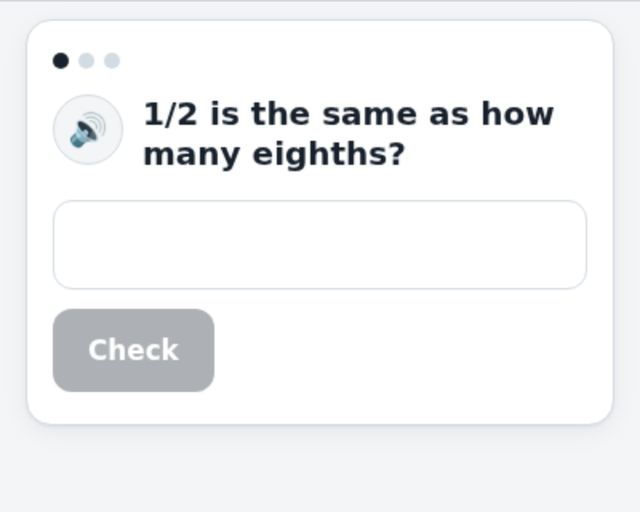 Equal Fractions · Try it
Make my team a lesson on the pick and roll.
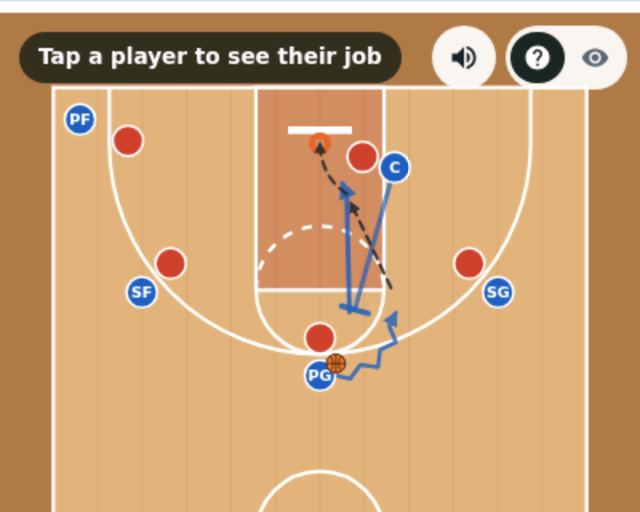 The pick and roll · Try it
Show the Silk Road on a map, with a few questions.
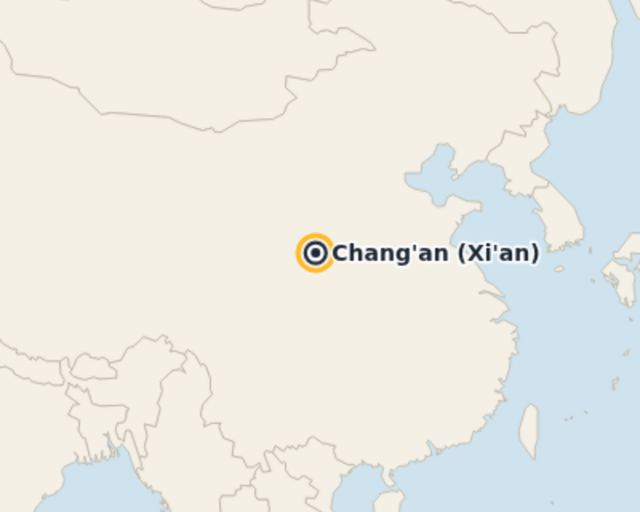 The Silk Road · Try it
Your AI can also make a timeline, or a 3D model to spin and tap. A quiz can even play out as a text chat with a character, like a pirate or a coach, who asks each question and reacts to the answer.
Connect it to your AI
You add SnapLesson in your AI’s settings, where ChatGPT lists it under plugins and Claude under connectors. Then you sign in to SnapLesson, or make a free account with your email. It takes a few taps, and each app’s steps are below. ChatGPT’s free plan works. Gemini allows it for personal Google accounts in the US.
- Add SnapLesson to Claude Claude opens with SnapLesson and its address filled in. Tap Continue.
- Tap Connect if it asks, sign in to SnapLesson, and tap Allow.
- Copy this address:
https://snaplesson.ai/mcp - Open ChatGPT’s plugins in a browser (the ChatGPT phone app can’t add one) and tap Add › Add custom MCP server.
- Name it SnapLesson, paste the address under Connection as the Server URL, and leave Authentication on OAuth.
- Tick I understand and want to continue, then Create as a plugin.
- Tap Connect SnapLesson, sign in to SnapLesson, and tap Allow.
- Copy this address:
https://snaplesson.ai/mcp - Open Gemini’s connectors on a computer and click + Custom.
- Paste the address as the MCP Server URL and click Next.
- Tick I understand and accept…, click Connect, sign in to SnapLesson, and tap Allow.
- In Grok Bot, say:
Connect to snaplesson.ai - It asks to add SnapLesson, then shows a card for it. Tap Connect on the card, sign in to SnapLesson, and tap Allow.
- In Muse, say:
Connect to snaplesson.ai - It shows a card to add a custom connector. Tap Add, sign in to SnapLesson, and tap Allow.
When you share it
The link opens in the web browser on any phone or computer, with nothing to install. The first time, each person types a name to go by. That’s all they’re asked.
See the results
Ask your AI something like “How did my team do on the pick and roll?”, and it tells you who finished, their scores and the answers they picked. The same results are on your lessons page on the SnapLesson website. Only you see them. The people you shared it with don’t see each other’s.
No AI of your own?
SnapLesson has its own lesson maker: type what you want on SnapLesson’s site, and it makes the lesson for you. A free account makes two lessons a day that way, and one more each time someone new finishes a lesson you shared. Lessons you make in your own AI don’t count toward those.